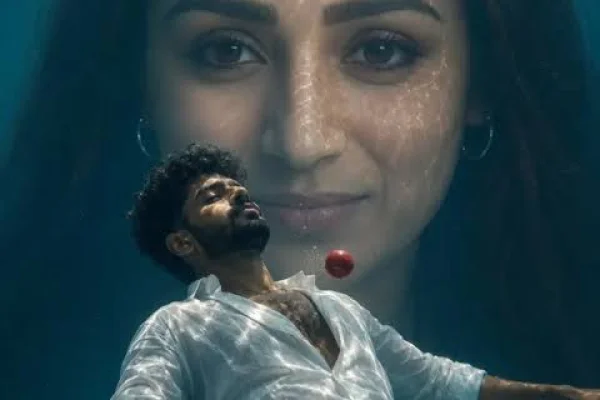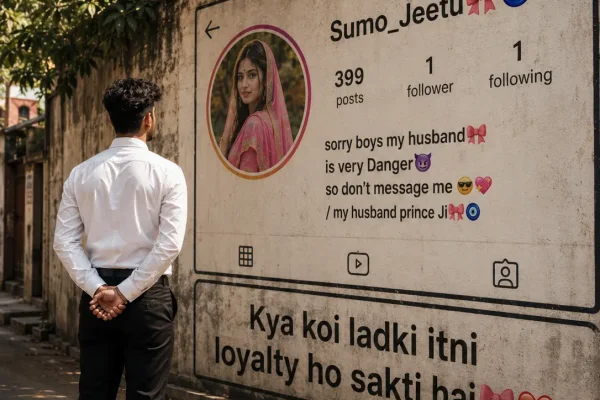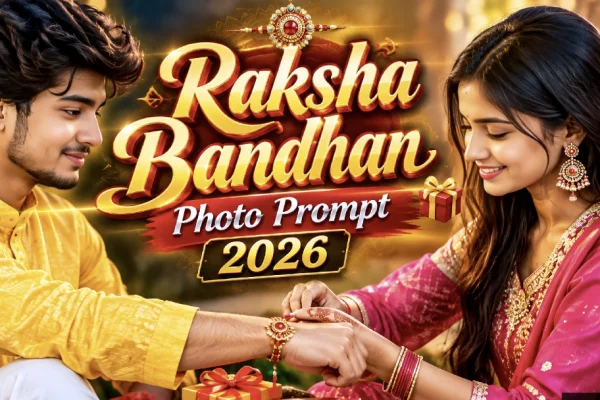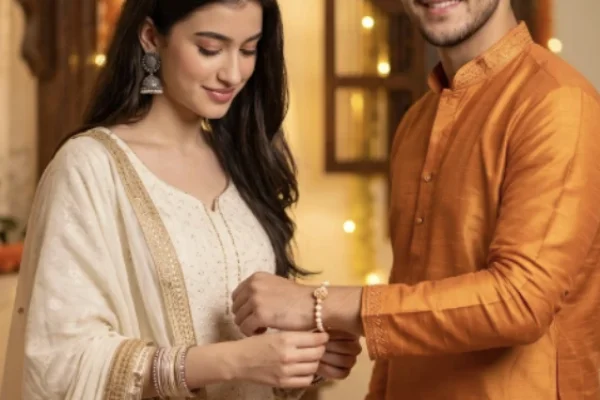
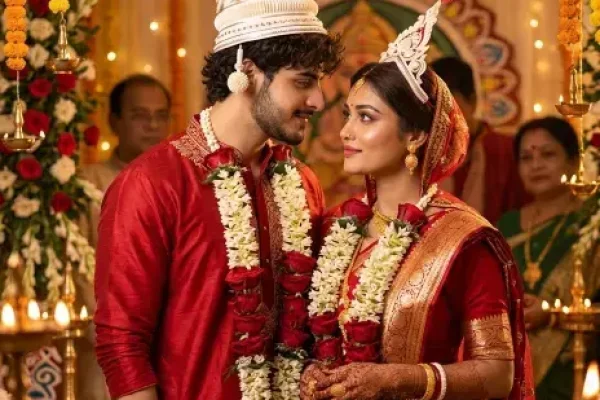
Indian Wedding AI Photo Prompts for Gemini (2026): Getting a full pre-wedding photoshoot done can be expensive and time-consuming — location bookings, outfit changes, professional photographers, and hours of shooting. That's part of why AI-generated wedding portraits have become so popular this year: with the right prompt and a clear reference photo, Gemini can turn a simple selfie into a cinematic, magazine-style Indian wedding photo in minutes.
This guide covers a set of ready-to-use prompts across different wedding aesthetics, along with the small adjustments that make the difference between a realistic result and one that looks obviously artificial.
Why This Trend Has Taken Off
- It removes the biggest cost barrier. A full pre-wedding shoot with outfits, locations, and a photographer can run into serious money — AI previews give couples a taste of that experience for free.
- It's useful for planning, not just fun. Many couples use these prompts to visualize outfit colors, venue styles, or poses before committing to an actual shoot.
- Results have gotten noticeably more realistic. Newer prompts that explicitly instruct the AI to preserve facial identity produce far more convincing results than older, generic prompts did.
- It works for any budget or timeline. Even couples who can't travel to a palace or beach location can generate that exact aesthetic instantly.
Copy-Paste Ready Prompts by Style
1. Traditional Mandap Ceremony
"Generate a photorealistic Indian wedding portrait of the couple standing together under a traditional floral mandap, both dressed in classic red and gold wedding attire, warm golden lighting from diyas and string lights, joyful expressions, traditional jewelry visible in detail, cinematic depth of field. Preserve the exact facial features and skin tone of both people from the uploaded photos."
2. Royal Palace Wedding
"Create a cinematic portrait of the couple in a grand Rajasthani palace courtyard, the bride in a heavily embroidered royal lehenga with statement jewelry, the groom in an ivory sherwani with a turban, warm evening light reflecting off marble architecture, regal and elegant mood, ultra-realistic detail. Keep both faces identical to the reference photos."
3. Modern Minimalist Pre-Wedding
"Generate a soft, modern pre-wedding portrait of the couple in an outdoor garden setting, pastel-toned outfits, natural daylight, relaxed candid poses, minimal jewelry, clean and airy background with soft bokeh. Preserve facial likeness and natural skin texture exactly as shown in the uploaded images."
4. Monsoon-Themed Romantic Portrait
"Create a moody, cinematic wedding portrait of the couple standing close together during a light monsoon drizzle, traditional attire slightly dampened for realism, soft diffused overcast lighting, emotional expression, atmospheric and romantic tone. Maintain accurate facial features from the uploaded reference photos."
5. Close-Up Jewelry and Detail Shot
"Generate an extreme close-up, photorealistic shot focusing on the bride's traditional jewelry — nose ring, layered necklace, and jhumka earrings — with soft directional lighting highlighting the metalwork and gemstones, warm skin tones, ultra-detailed texture."
How to Use These Prompts Step by Step
- Choose a clear, well-lit, front-facing photo of yourself (and your partner, if it's a couple portrait).
- Open Gemini and upload the reference photo.
- Paste your chosen prompt from above, adjusting colors, outfit style, or location details to match your preference.
- Generate the image, and regenerate 2-3 times if the first attempt looks slightly off — this is completely normal.
- Compare a few versions and pick the one where facial likeness and proportions look most accurate.
Making Your Results Look More Realistic
- Always include an instruction like "preserve facial features and skin tone from the uploaded photo" — without this, the AI tends to generate a face that only loosely resembles the actual person.
- Add "natural skin texture, visible pores" if the result looks too smooth or plastic.
- Specify aspect ratio (like 4:5 or 3:4) if you're generating the image specifically for Instagram or a printed photo.
- Mention specific fabric details (embroidery type, mirror work, fabric texture) for more accurate traditional outfit rendering instead of a generic, flat look.
Common Mistakes to Avoid
- Using a blurry or angled reference photo. The AI has very little to work with if the source image isn't clear, often resulting in a distorted likeness.
- Skipping the "preserve face" instruction. This is the single biggest reason results look like a different person entirely.
- Overloading the prompt with too many conflicting styles. Mixing royal, minimalist, and monsoon aesthetics in one prompt usually produces a confused, inconsistent output.
- Expecting a perfect result on the first try. Portrait-accuracy prompts typically need a few regenerations before the likeness feels right.
Frequently Asked Questions
Q1. Do I need a paid tool to use these prompts?
No, these prompts work well with the free tier of Gemini. Paid versions may offer slightly more detail, but they aren't required.
Q2. Can I use these prompts for a solo bridal portrait instead of a couple photo?
Yes, simply adjust the prompt to describe one person instead of two, and remove any couple-specific pose instructions.
Q3. Why does the AI sometimes change our faces slightly?
This usually happens when the reference photo is unclear or the prompt doesn't explicitly instruct the AI to preserve facial features. A sharp, front-facing photo paired with that instruction fixes most cases.
Q4. Can I customize the outfit colors and jewelry in these prompts?
Yes, all of the prompts above can be edited to change colors, jewelry style, or region-specific outfit details like lehenga, saree, or sherwani variations.
Q5. How many attempts does it usually take to get a good result?
Most people get a usable result within 3 to 5 generations, especially once the prompt clearly specifies likeness and style details.
Conclusion
These Indian wedding AI photo prompts give you a fast, low-cost way to visualize a pre-wedding shoot before committing to an actual location or outfit. With a clear reference photo and a prompt that locks in facial likeness and style details, you can get genuinely convincing, shareable results in just a few tries — whether it's for planning purposes or simply for fun.